Published: September 2026
Until now, recording your harmonium practice meant pointing a phone microphone at your speakers or wrestling with screen-recorder apps. That changes today: Web Harmonium has a built-in recorder. One button starts the recording, the same button stops it, and a standard MP3 file downloads directly to your device — phone, tablet, or computer. It is free, needs no sign-up, and your audio never leaves your device: the recording is captured and converted to MP3 entirely in your browser.
Open Web Harmonium, press the red Record button (top-left of the control bar), play, then press Stop. After a short "Processing" moment your recording downloads automatically as an MP3 — ready to replay, send to your teacher, or share.
What is the new recording feature in Web Harmonium?
It is a one-button audio recorder built into the instrument itself. While recording, it captures exactly what the harmonium produces — including your komal and teevra swars, the transpose and octave settings you chose, extra reed stacks, and the reverb — so the MP3 sounds the way you heard it while playing. Because the capture happens inside the audio engine rather than through a microphone, there is no room noise, no fan hum, and no distortion from re-recording speakers.
Everything runs locally in your browser. Nothing is uploaded to a server, no account is created, and there is no watermark or paywall. The file you get is a normal MP3 that plays anywhere — WhatsApp, music apps, editing software.
How do I record harmonium online?
- Open the app. Go to webharmonium.vercel.app in any modern browser and tap Start.
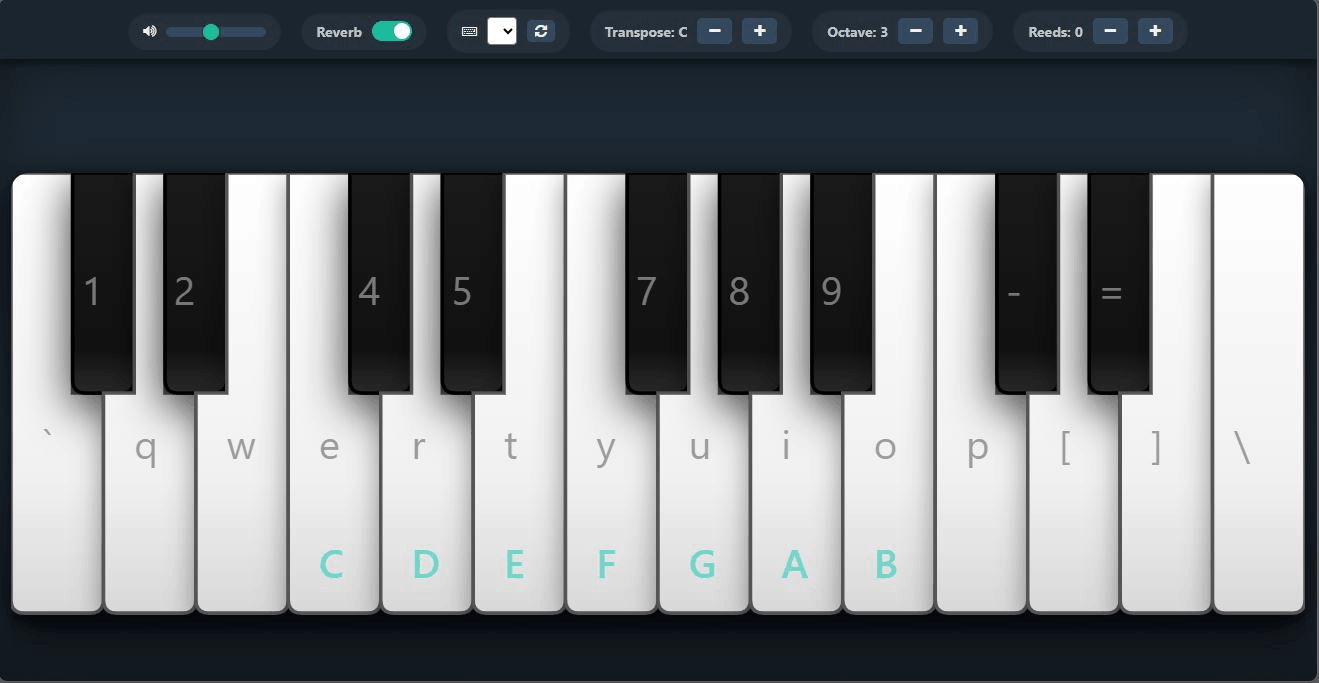
- Press Record. The Record button sits first in the top control bar, before the volume slider. The dot turns bright red and blinks, and a timer shows your recording length.
- Play. Use your computer keyboard, touchscreen, or a MIDI keyboard — chords and multi-finger touch are captured faithfully.
- Press Stop. The button briefly shows Processing while your take is converted to MP3, then the file downloads automatically. The filename starts with
webharmonium.vercel.appfollowed by the date and time, so takes never overwrite each other.
Where does the file go? Wherever your browser saves downloads — the Downloads folder on Windows, macOS, and Android, or the Files app on iPhone/iPad. Look for a name like
webharmonium.vercel.app-harmonium-20260715-183000.mp3.
What can I use harmonium recordings for?
| Use case | How the recorder helps |
|---|---|
| Riyaz self-review | Record your alankar patterns or scales, play them back, and hear unevenness you cannot notice while playing. |
| Sending practice to a teacher | Record a take and share the MP3 on WhatsApp or email — far clearer than a phone-mic video. |
| Bhajan & kirtan preparation | Record the melody line of a bhajan once, then loop it while you practice singing over it. |
| Keeping musical ideas | Caught a nice phrase while improvising in Raag Yaman? Record it before it slips away. |
| Progress tracking | Save one recording a week during a 30-day practice plan and hear your own improvement. |
Which devices does recording work on?
The recorder works wherever Web Harmonium works: Windows and Mac browsers (Chrome, Edge, Firefox, Safari), Android phones and tablets, and iPhone/iPad. On desktop you can play from the computer keyboard while recording; on mobile the multi-touch keys work exactly as usual. The MP3 conversion happens on your device, so a mid-range phone handles typical practice takes comfortably.
What exactly does the recorder capture — and what does it not?
To set honest expectations:
- Captured: every note the instrument plays, with your chosen volume, transpose, octave, reed, and reverb settings — a clean instrument-only track.
- Not captured: your voice or anything from your microphone. The recorder taps the instrument's audio engine, not the mic, so you cannot record singing with it. To record voice plus harmonium together, play Web Harmonium through speakers and use any voice-recorder app on a second device.
- Format: a standard MP3 (mono, 128 kbps) — ideal for sharing and practice review. It is not a multitrack studio stem; for produced recordings a DAW with a sampled instrument remains the right tool, as covered in our apps and tools comparison.
- Length: there is no fixed time limit. Recordings are held in memory until you press Stop, so very long sessions on older phones may run out of memory — for multi-hour sessions, record in a few shorter takes.
Tips for a clean recording
- Set your scale first. Fix transpose and octave before pressing Record — changing them mid-take is captured too (which can also be a feature!).
- Leave a second of silence at the start and end; it makes trimming and looping easier.
- Watch the blinking red dot. If it is not blinking, you are not recording.
- Do a five-second test take the first time, so you know where your browser saves downloads.
- Keep the tab in the foreground on mobile. Phone browsers may pause audio in background tabs, which would pause your take.
Frequently asked questions
How do I record harmonium online for free?
Open Web Harmonium in your browser, press the Record button at the left of the top control bar, play, and press Stop. The recording converts to MP3 in your browser and downloads automatically. It is completely free with no sign-up.
Where is the downloaded MP3 file saved?
In your browser's normal download location — the Downloads folder on Windows, macOS, and Android, or the Files app on iPhone and iPad. The filename begins with webharmonium.vercel.app followed by the date and time of the take.
Can I record my voice along with the harmonium?
No — the recorder captures only the instrument's own sound, not your microphone. That keeps recordings noise-free. To capture singing with harmonium, play through speakers and record both with a voice-recorder app on another device.
Is there a time limit on recordings?
There is no fixed limit. Takes are held in your device's memory until you stop, so ordinary practice recordings of many minutes are fine; only extremely long sessions on low-memory phones may struggle. Shorter takes are also easier to review.
Does harmonium recording work on mobile phones?
Yes. Recording and MP3 download work on Android and iOS browsers, with the same multi-touch keys as normal play. Keep the tab in the foreground while recording, since mobile browsers can pause audio in background tabs.
What audio quality is the recorded MP3?
A standard 128 kbps mono MP3 at your device's native sample rate — clean and clear for practice review, teacher feedback, and sharing. Because it is captured digitally inside the instrument, there is no microphone hiss or room noise at all.
Is my recording uploaded to a server?
No. The audio is captured and encoded to MP3 entirely inside your browser and saved straight to your device. Nothing is uploaded, so your practice stays private and recording even works with a slow connection once the app is loaded.