Connect MIDI Keyboard
Step-by-step guide to use any USB MIDI keyboard with our online harmonium. No drivers, no installation.
Free — No Install Required
Step-by-step guide to use any USB MIDI keyboard with our online harmonium. No drivers, no installation.
Playing harmonium online with a computer keyboard is convenient, but a MIDI keyboard transforms the experience for your PC harmonium setup. You get velocity-sensitive keys, proper spacing, and the ability to practice real finger techniques on a full-sized online harmonium keyboard. This guide shows you how to connect any MIDI controller to Web Harmonium in under 5 minutes.
You only need a USB MIDI keyboard and a Chromium-based browser (Chrome, Edge, or Opera). Plug in, allow permission, select the device, and play. No software installation required.
Web Harmonium uses the Web MIDI API to communicate with your keyboard. As of 2026, this API is supported in:
Safari and Firefox do not yet support Web MIDI. If you are on macOS, use Chrome or Edge instead of Safari. On iOS, Web MIDI support is limited — use a laptop or Android tablet for the best experience.
Connect your keyboard to your computer using the supplied USB cable. Most modern MIDI controllers are class-compliant, meaning they do not require special drivers.
Older keyboards with 5-pin MIDI DIN ports: You will need a MIDI-to-USB interface (such as the Roland UM-ONE or iConnectivity mio). Plug the MIDI OUT from your keyboard into the interface, then connect the interface to your computer via USB.
Open webharmonium.vercel.app. When the browser detects a MIDI device, a permission prompt appears:
If you accidentally blocked access, click the lock icon in the browser address bar, find "MIDI devices," and change it to "Allow."
In the top control bar of Web Harmonium, locate the MIDI Keyboard dropdown. Click the refresh icon () if your device is not listed. Select your keyboard by name — for example, "AKM320 by AKAI" or "MPK mini by Akai Professional."
Once selected, the app listens exclusively to that device. If you connect additional MIDI devices later, refresh the list again.
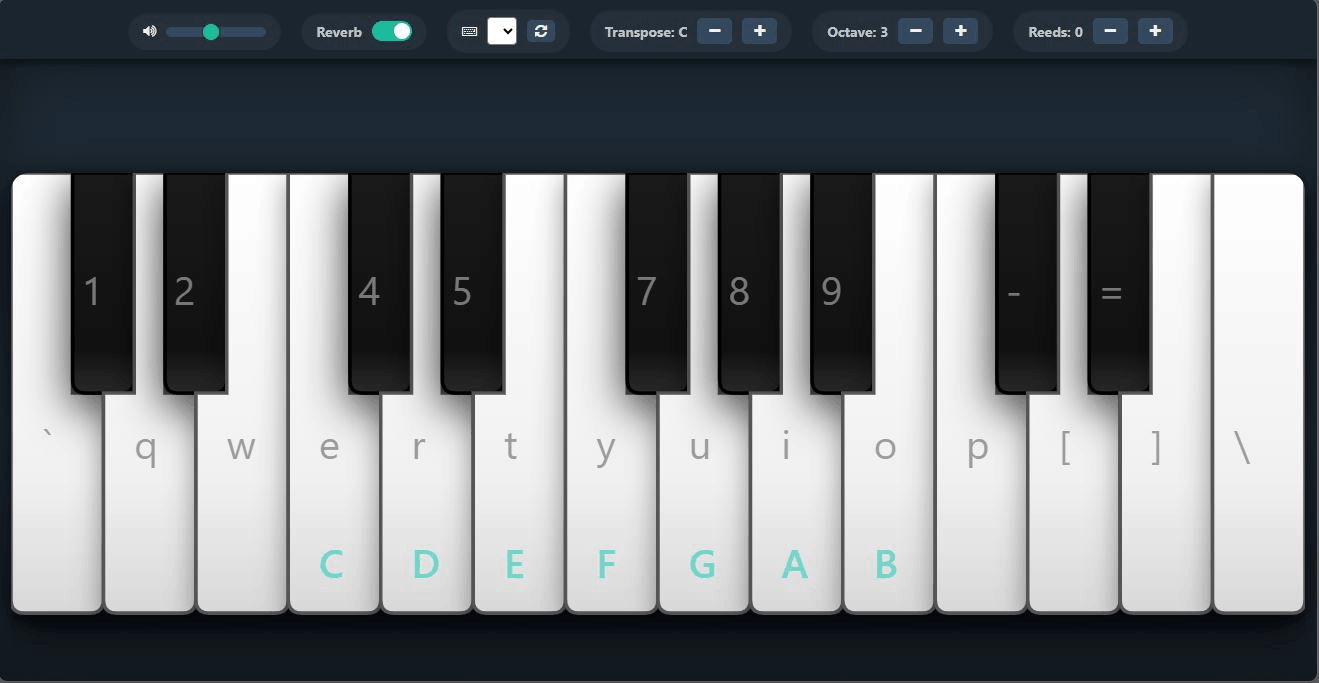
Press a white key on your MIDI keyboard. You should hear a harmonium tone immediately. If the pitch feels too high or low for your voice:
Enable Reverb for a room-like acoustic feel, and add Additional Reeds for a fuller, multi-reed harmonium tone.
| Keyboard | Keys | Velocity | Price Range | Best For |
|---|---|---|---|---|
| Akai LPK25 | 25 mini | Yes | $50–$70 | Travel, beginners |
| Nektar SE25 | 25 mini | Yes | $40–$60 | Budget learners |
| Arturia MiniLab 3 | 25 mini | Yes | $100–$120 | Pads + knobs included |
| M-Audio Keystation 49 | 49 full-size | Yes | $90–$120 | Serious practice, two-hand play |
| Nektar Impact GX49 | 49 full-size | Yes | $80–$100 | Best value full-size |
| Roland A-49 | 49 full-size | Yes | $150–$180 | Premium feel, weighted option |
Yes. Web Harmonium supports MIDI keyboards through the Web MIDI API on Chrome, Edge, and Opera. Plug in your keyboard, allow browser permission, select it from the dropdown, and play.
The Akai LPK25, Nektar SE25, and M-Audio Keystation 49 offer excellent value. The SE25 is ideal for absolute beginners; the Keystation 49 is better for serious two-hand practice.
Use Chrome, Edge, or Opera. Reconnect the keyboard and click the refresh icon. Ensure your USB cable supports data transfer and the keyboard is powered on.
Most modern USB MIDI keyboards are class-compliant and require no drivers on Windows, macOS, or Linux. Only older or proprietary models may need manufacturer drivers.